
Step-by-step guide: connecting your Salesforce CRM to BI and analytics tools using Devart ODBC Driver for Salesforce
 0
0
 0
0
Salesforce runs on APIs and SOQL rather than traditional SQL, which complicates any attempt to connect Salesforce to Power BI. To bridge the gap, many teams fall back on CSV exports, replication jobs, or intermediary warehouses: solutions that work for a while but don’t scale. Over time, these workarounds lead to fragmented datasets, manual refresh cycles, and reporting that lags behind live activity.
A more effective approach is to introduce a SQL bridge between Salesforce and your BI tools. In this guide, you’ll see how the ODBC Driver for Salesforce delivers that capability. It allows Power BI and other SQL-based analytics tools platforms to query Salesforce as a SQL-accessible source and enables real-time, unified CRM reporting without exports or ETL.
Why Salesforce needs a SQL bridge
Salesforce was built as a cloud application, not a relational database. Its data is queried through SOQL, which supports predefined relationships but lacks the flexible JOINs, wildcards, and relational operations analysts expect in SQL.
This becomes a problem when BI tools like Power BI, Tableau, or Qlik assume every source behaves like SQL tables. Blending Salesforce with ERP, marketing, or support data often turns a simple query into API calls, SOQL scripts, or manual exports—slowing down even basic Salesforce data visualization. That’s why most teams eventually fall back on temporary workarounds.
Traditional workarounds—and their limits
The following approaches keep analytics moving, but they also introduce delays, duplication, and operational overhead that don’t scale as reporting needs grow. Here are some of the workarounds:
- CSV exports: These are simple but manual, brittle, and never fully up to date.
- Custom ETL/ELT: Adds structure but requires constant fixes for API limits, schema changes, and batch delays.
- Sync tools: Quick to deploy, yet sync jobs drift, costs rise, and data copies fall out of alignment with Salesforce.
At some point, every team outgrows these fixes.
The better way: a Salesforce ODBC driver as a live SQL bridge
A scalable alternative is to treat Salesforce as a SQL-accessible source. ODBC makes this possible by giving Salesforce business intelligence tools a universal, SQL-based connection layer.
The Devart ODBC Driver for Salesforce sits at the center of this workflow. It acts as a live bridge between your BI tools and Salesforce providing:
- High-performance connectivity for Salesforce reporting, analytics, BI, and ETL.
- Full ODBC compliance for native tool integration.
- SQL-to-SOQL translation plus native SOQL execution.
- Extended SQL capabilities for deeper Salesforce SQL analytics.
- Broad compatibility for complete Salesforce BI integration.
- Secure, flexible authentication.
Together, these features eliminate the need to copy Salesforce data into a separate database or warehouse just to analyze it. You configure the Salesforce ODBC driver once, and your BI tools query Salesforce objects directly, as if they were relational tables, enabling truly live, real-time Salesforce reporting without added infrastructure.
Now, let’s walk through how to set it up.
Step-by-step: connect Salesforce to Power BI using Devart ODBC Driver
Power BI Desktop is the primary example in this guide because it’s one of the most widely used platforms for Salesforce reporting and SQL-based analytics. This same workflow also supports Salesforce to Tableau integration, and any BI tool that connects through ODBC.
Prerequisites
Before you start, you need:
- A Salesforce org with API access (e.g., Enterprise Edition or Professional with API enabled).
- Power BI Desktop installed on your machine.
- Devart ODBC Driver for Salesforce installed (a 30-day trial is available from Devart’s site).
Step 1: Install the Devart ODBC Driver for Salesforce
Begin by installing the driver on the machine that will run Power BI Desktop or the data gateway. Do the following:
- Download the installer from the Devart website and run the .exe file.
- Accept the license agreement and proceed with the setup wizard.
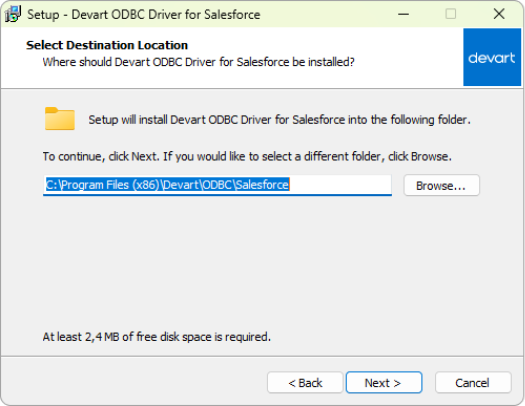
- Choose the installation folder (default is fine for most users).

- Select components, keep the default options unless you need something specific.
- Pick a Start Menu folder or skip creating one.
- Click Install and let the wizard complete the setup.
- Activate the driver using your key or select Activate later for trial mode.
- Finish the wizard to complete installation.
Once installed, you can configure the ODBC Data Source (DSN) for use with Power BI or any other BI tool.
Step 2: Configure the ODBC Data Source (DSN)
A DSN (Data Source Name) stores the connection details that Power BI or any BI tool will use to connect to Salesforce through the Devart ODBC driver. Here is how to configure it:
- Open the ODBC Data Source Administrator: In the Windows search bar, type ODBC Data Sources and select the version (32-bit or 64-bit) that matches your BI application.
- Choose the DSN type: Select the appropriate tab User DSN, System DSN, or File DSN. System DSN is most commonly used because it’s accessible to all users and system services.
- Add a new DSN: Click Add to begin creating a new data source.
- Select the Devart Salesforce driver: In the Create New Data Source dialog, choose Devart ODBC Driver for Salesforce, then click Finish.
- Enter the DSN details: In the configuration dialog, give your DSN a clear name (e.g., Salesforce_Devart_Prod) and provide the required connection information. OAuth 2.0 is the default authentication method, but you can switch to User ID and Password if needed.
- Test the connection (optional): Click Test Connection to confirm that the driver can authenticate and reach your Salesforce environment.
- Save the DSN: Click OK to store your settings and finalize the DSN configuration.
Note: If you use Username + Password authentication and choose not to save the password, you’ll be prompted at runtime.
Step 3: Authenticate Salesforce credentials (OAuth)
Once the DSN is created, the ODBC driver needs to authenticate with Salesforce. The driver supports three authentication methods, but OAuth 2.0 is recommended because it’s more secure and avoids storing passwords directly in the DSN. Here’s how each method works.
- Select OAuth 2.0 as the authentication method: In the DSN configuration dialog, choose OAuth 2.0 from the Authentication dropdown.
- Sign in through the browser window: A browser window opens for Salesforce login, using your normal username, password, or SSO flow.
- Authorize the driver: When prompted, click Allow. This grants the driver permission to query Salesforce on your behalf.
- Store the OAuth token: After you sign in, the driver retrieves a secure access token. This token is used for all future connections, including scheduled refreshes.
If your organization prefers credential-based authentication, the driver supports that as well:
- Select User ID and Password: Enter your Salesforce username and password, plus your security token if required by your org’s settings.
- Enter your username, password, and security token: If a security token is required, append it to your password when entering it (e.g., MyPassword123ABC).
For controlled, on-premises network environments:
- Authenticate without a token on trusted IP ranges: If your organization has approved your network’s IP range in Salesforce, you can authenticate with just a username and password, no security token needed.
- Save and close the DSN: The DSN now contains all the authentication details your BI tools need to connect to Salesforce through the ODBC driver.
This completes the authentication step and prepares the DSN for use inside Power BI or any other ODBC-compatible BI tool.
Step 4: Connect Power BI to Salesforce using the ODBC DSN
With the DSN configured and authentication set, the next step is to bring Salesforce data directly into Power BI. Here’s how:
- Open Power BI Desktop: Launch Power BI on your Windows machine.
- Click Get Data from other sources: This opens the list of available data sources, just like in the documentation screenshot.
- Select Other > ODBC, then click Connect: Power BI will open the ODBC connection dialog exactly as shown in the official instructions.
- Choose your Salesforce DSN in the Data Source Name (DSN) field: Select the DSN you created earlier (for example, Salesforce_Devart_Prod).
- Enter advanced options if needed (Optional): Here you can add connection string parameters or paste a SQL query to filter or limit the data before loading it. These options appear exactly in the same place as in the documentation screenshot.
- Click OK to initiate the connection: Power BI will attempt to connect through the Devart ODBC Driver using the DSN settings.
- Enter credentials if prompted: If your DSN doesn’t store credentials, especially for username/password authentication, Power BI will open a dialog matching the documentation where you must enter them. After filling them in, click Connect.
- Review the list of available Salesforce tables in the Navigator panel: If the connection succeeds, Power BI displays all Salesforce objects, exactly as shown in the documentation screenshot.
- Select a table to preview its data (Optional): Power BI shows a preview window identical to the one in the official docs.
- Select the tables you want to import and click Load: Power BI loads the data into your model, just like in the final documentation screenshot.
This step establishes the live bridge between Salesforce and Power BI. From here, you can model the data the same way you would with a SQL database, without managing exports, pipelines, or sync jobs.
With the connection in place, the next step is loading what you need.
Step 5: Load and visualize Salesforce data in Power BI
After Power BI connects to the Salesforce DSN, you can preview the available objects and import the ones you need into your report. Here is how:
- View the available Salesforce objects in the Navigator window: Power BI displays the list of tables and objects returned by the Devart ODBC Driver. This view mirrors what appears in the official Devart documentation.
- Preview any object to inspect its data: Click a table name to see a preview of its contents. This helps confirm that you’re loading the correct Salesforce object before importing it.
- Select the objects you want to import: Check one or more tables (such as Accounts, Opportunities, Leads, or custom objects) that you plan to use in your report.
- Click Load to import the data into Power BI: Power BI retrieves the selected Salesforce data through the ODBC driver and loads it into your model, just as shown in Devart’s documentation steps.
- Switch to Table view to review the imported data (optional): Power BI lets you inspect the raw table data after it’s loaded, matching the “View the data” section in the documentation.
- Begin visualizing your Salesforce data in Report view: Once the data is loaded, go to Report view and create visuals by dragging fields onto the canvas—charts, tables, slicers, KPIs, or other components used in Salesforce sales reporting or analytics.
Step 6: Schedule automatic refreshes for real-time dashboards
After publishing your report to the Power BI Service, you can configure scheduled refreshes so your Salesforce data stays current without manual updates.
- Publish your report to Power BI Service: In Power BI Desktop, click Publish, choose a workspace, and upload your report and dataset.
- Install and configure the On-premises Data Gateway: The gateway must run on the same machine where the Devart ODBC Driver and Salesforce DSN are configured.
Power BI uses this gateway to access the DSN during refresh.
- Open the dataset settings in Power BI Service: In the workspace, select your dataset, then choose Refresh > Schedule refresh.
- Verify the gateway connection: Under Gateway connection, select your gateway.
Power BI should display your Salesforce DSN as an available data source.
- Provide credentials if required: Under Data source credentials, enter the credentials needed by the DSN. (OAuth-based DSNs often skip this step because the token is already stored.)
- Enable scheduled refresh: Turn Scheduled refresh to On, then choose the refresh frequency and time slots allowed by your Power BI plan.
- Save the refresh configuration: Click Apply to make the schedule active. Power BI will now query Salesforce at the intervals you set, using the Devart ODBC Driver through your gateway.
With scheduled refresh in place, your dashboards stay aligned with live Salesforce activity, giving teams reliable insight without managing CSV exports, pipelines, or sync jobs.
Real-time reporting benefits
Here’s a closer look at what changes once the connection is live:
- Unified analytics across systems: Salesforce becomes a SQL-accessible source, letting analysts blend CRM data with finance, support, or marketing datasets in a single BI model instead of separate silos.
- SQL-native workflows: Analysts use familiar SQL queries, joins, filters, and aggregates (no SOQL, API scripts, or custom connectors) fitting naturally into existing BI patterns.
- Faster time-to-insight: Dashboards reflect real Salesforce activity, not the last CSV export or ETL batch, allowing teams to track performance as it changes.
- No data duplication: BI tools query Salesforce directly through the ODBC driver, removing staging databases, sync jobs, and data drift.
- Consistent, current dashboards: Forecasts, funnel metrics, customer health, and operational KPIs stay aligned with live CRM activity.
Taken together, these advantages transform Salesforce from a standalone CRM into a fully integrated part of your analytics workflow.
Final word
Salesforce’s API-driven model makes traditional BI workflows heavy and slow, especially when teams need SQL-style analysis or unified dashboards across CRM, ERP, and marketing data. The Devart ODBC Driver for Salesforce solves this by creating a direct SQL bridge into your CRM, allowing Power BI and other BI tools to read Salesforce objects through a standard ODBC connection.
With this setup, analysts operate in familiar SQL, dashboards update with current Salesforce activity, and the entire reporting process becomes simpler, faster, and far more dependable.
Download the Devart ODBC Driver for Salesforce, configure a DSN, and build your first Salesforce-to-Power BI report on live CRM data.
Artificial Intelligence – The Data Scientist