
Document360 Launches MCP Support And It Changes How AI Accesses Your Docs
 0
0
 0
0
You have a knowledge base. You have an Document360 Launches. And yet, every time you need one to work with the other, you’re the one doing all the connecting.
Copy the article. Paste it into the chat. Ask your question. Wait. Copy the answer. Repeat. It works, technically, but the word “works” is doing a lot of heavy lifting there. The context-switching adds up. And somewhere in the process, a developer forgets to paste the latest version of the docs, a support agent gets an answer based on outdated content, and a technical writer duplicates an article that already exists.
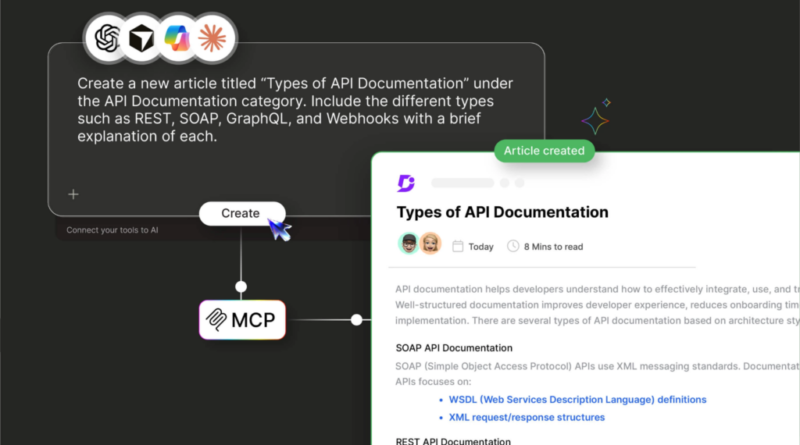
Document360 is a knowledge base software built for teams that create and manage product documentation. It has launched MCP server support, which means AI assistants like Claude and ChatGPT can now connect to your knowledge base directly and pull from it in real time. The prompt replaces the copy-paste.
Here’s what MCP is, what Document360’s implementation actually does, and which roles on your team stand to benefit most.
First, What Exactly Is MCP?
MCP stands for Model Context Protocol. It is an open standard that gives AI assistants a structured, secure way to connect with external platforms and retrieve live data in real time.
The simplest way to think about it: most software tools need custom, point-to-point integrations to talk to each other. A new AI tool that wants to connect to your documentation platform, your CRM, and your ticketing system traditionally needs a separate integration built for each one. MCP replaces that approach with a common interface. Build once, connect everywhere.
That matters a great deal right now because Claude, ChatGPT, GitHub Copilot, and Cursor have all adopted MCP. It is becoming the default standard for AI-to-platform connectivity, not a niche protocol. Being on the right side of that shift early changes what your team can do with the AI tools they are already using.
Without MCP , AI assistants are limited to their training data. They can reason well, but they can only use what they already know. With MCP, they pull real, current content from connected systems at the moment of the request. Your documentation becomes part of the AI’s working context. It is no longer something pasted in manually, and no longer something approximated from training data that might be months out of date.
Document360 has built and launched an MCP server so that any MCP-compatible assistant can interact directly with your knowledge base. No custom development required on your end.

What Document360’s MCP Server Does
The MCP server does not expose your knowledge base as a set of static web pages. It exposes it as queryable, actionable content that an AI assistant can actually work with.
What AI Assistants Can Do Through MCP
Through MCP, AI assistants connected to Document360 can search articles across project versions, retrieve specific articles by ID or URL, create new articles, and update existing content. That covers the full read-and-write cycle of documentation work, all accessible from within an AI conversation.
Security and Governance Stay Intact
Security is not an afterthought here. Document360’s MCP implementation uses OAuth for authentication. It enforces the same role-based access controls already configured in your project. If a user does not have permission to see a particular piece of content in Document360, the AI assistant does not have access to it either. Restricted articles, unpublished drafts, and internal-only documentation all stay governed by your existing rules. MCP does not create a backdoor.
Write operations follow the same pattern. Creating or editing articles through MCP goes through your existing workflows and versioning rules. The AI can help draft or update content, but it does so within the governance structure you have already set up. MCP extends access to your knowledge base. It does not override the controls around it.
Nothing to Build or Host
The MCP server is built into your Document360 project configuration. Your team does not need to build or host a separate server. Setup is handled within Document360 itself, and no external infrastructure is required.
Who Benefits and How
MCP is not a feature built for one role. Here is what it looks like in practice across four distinct workflows.
Technical Writers
Technical writers can ask an AI assistant to fetch all existing articles on a topic before drafting a new one. No tab-switching. No manual searching across the knowledge base to check what already exists. Research and writing happen in the same session, grounded in the team’s own documentation rather than the AI’s general knowledge.
Support Teams
Support teams can paste a customer ticket directly into Claude or ChatGPT, ask the AI to find the most relevant knowledge base articles, and get a response built on actual product documentation. The AI is not guessing. It is reading what your team has already written. If no article addresses the issue, the support agent can use the same MCP connection to draft one on the spot, without switching tools.
Developers
Developers can connect Document360 to Cursor or GitHub Copilot to pull version-accurate documentation without leaving the IDE. This matters more than it sounds. Developers working on a complex feature often need to reference docs from a specific product version. With MCP, the right version is retrievable from within the coding environment itself. Draft documentation for new features can be generated directly from the development workflow, while the context is still fresh.
Product and Ops Teams
Product and ops teams can pull documentation by product version, compare feature descriptions across releases, or identify documentation gaps before a launch, all within a single AI conversation. No spreadsheets tracking what’s been written. No separate audit process. The knowledge base becomes something you can interrogate in natural language.
One MCP server. Four workflows. The feature fits into how each role already operates.
Getting Started With Document360 MCP
MCP support is available in Document360 now. Enabling it requires a Project Owner or Admin role in your project. It is not a setting that individual contributors can switch on without oversight.
Connection to AI tools is handled via OAuth. The setup process is guided and does not require engineering resources for most teams. If you can configure a third-party login, you can configure this.
Supported AI Tools
Supported AI assistants at launch include Claude, ChatGPT, GitHub Copilot, and Cursor IDE. Any platform that supports MCP or custom connectors can also be connected. For teams with specific integration requirements, Document360 provides a custom connector path.
MCP vs the Document360 API
A question that comes up often: what is the difference between MCP and Document360’s existing API? The distinction is straightforward. MCP is purpose-built for AI assistant interactions. It is conversational, context-aware, and session-based. The API is better suited for programmatic, app-to-app integrations where you are moving structured data between systems. They serve different use cases. For anything involving an AI assistant reading or writing documentation, MCP is the right path.
To help teams get up and running, Document360 has published a dedicated MCP prompt guide and a use case library in the docs. Both are available now.
Check out this video on how to connect any AI tool to a knowledge base using MCP- https://www.youtube.com/watch?v=V60PGzefWm0
The Gap Is Now Closed
MCP is becoming the standard for connecting AI assistants to real business data. The major AI tools have already adopted it. The platforms integrating with those tools are doing the same. Document360’s MCP server puts your knowledge base on the right side of that shift without asking your team to build anything.
The problem was specific: your AI assistant did not know what was in your knowledge base unless you told it manually, every time. The solution is now a single feature toggle.
Accurate documentation is only useful when it is accessible. With MCP support, it is accessible to every AI tool your team is already using, in the right version, with the right permissions, and in the right context.If your team manages documentation on Document360, MCP is worth setting up this week. The prompt guide in the docs is a good place to start.
Artificial Intelligence – The Data Scientist